Uplisting
How to set-up OAuth app
To get access to the oAuth credentials, reach out to the uplisting API support / Partnerships team (
partner@uplisting.io).Please ask them to set the Redirect URL to
https://dev.calry.app/api/v1/oauth/callbackfor development environment andhttps://prod.calry.app/api/v1/oauth/callbackfor production environment.Now, go to Calry webapp > OAuth > '+ New OAuth app'. Select Uplisting from the drop down in Integration type. Paste the
client_idandclient_secretfrom step 1.Paste this as the scope:
calendar:read calendar:write properties:read properties:write reviews:read bookings:read bookings:create bookings:update custom_booking_attributes:read custom_booking_attributes:write messaging:read messaging:write offline_access
- Finally click on 'Create'.
How to authenticate the integration
We'll use a test app, Acme AI, to show how an end-user can authenticate the integration between Uplisting and Acme AI.
Go to Settings > Integrations section within Acme AI app.
Among the list of Integrations, click on Uplisting's logo and you will be redirected to the Authentication Screen as shown below.
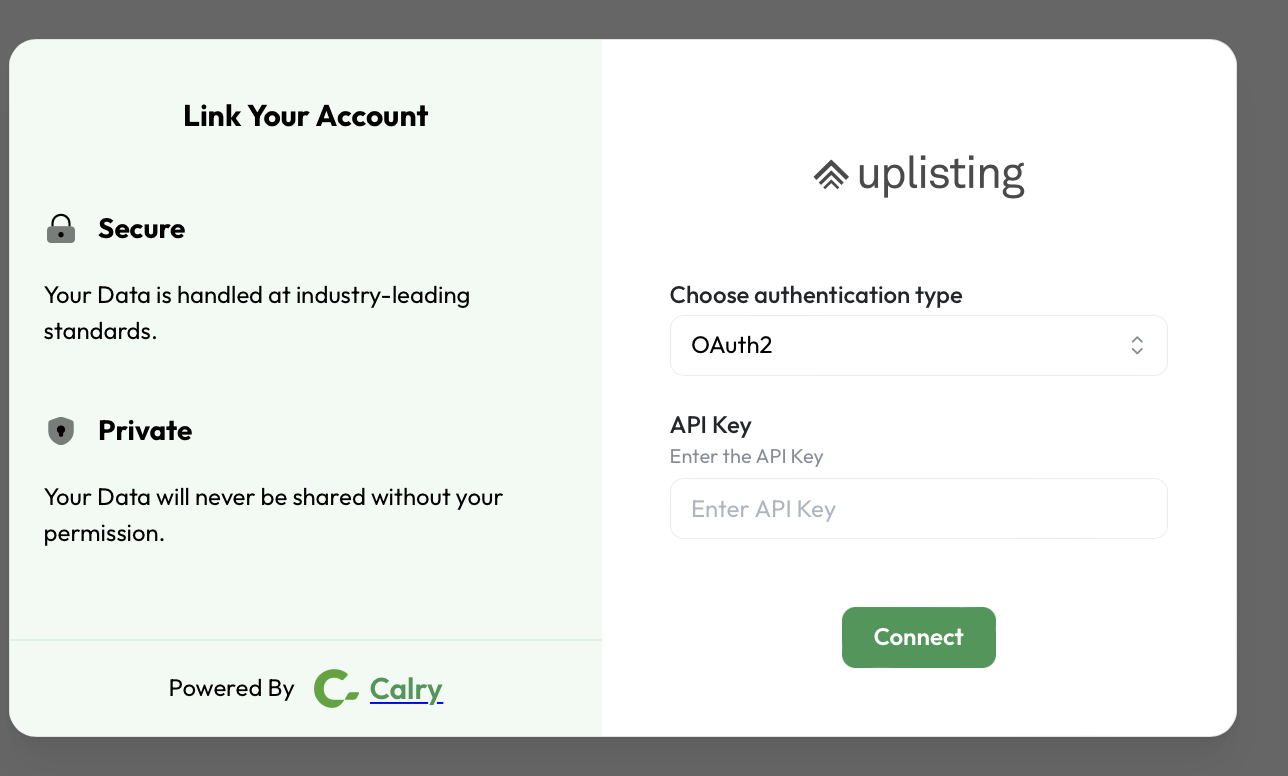
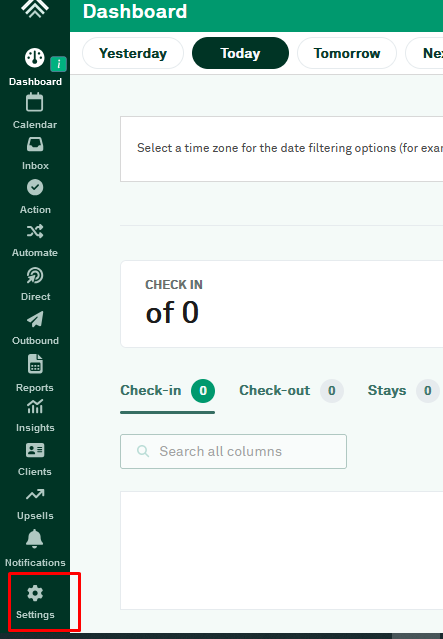
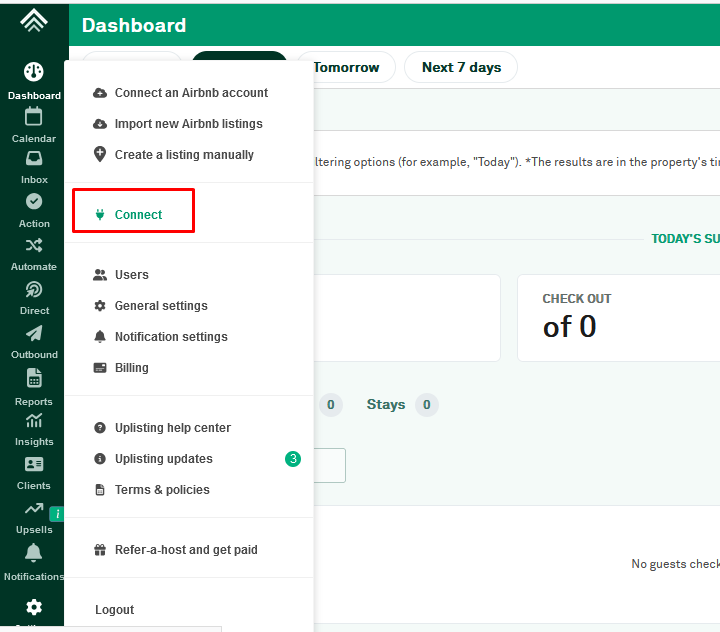
Now switch over to your Uplisting Account in a new tab. Go to ‘Settings > Connect > API Key’ section as shown in below images. Generate the API key and copy it to your clipboard.
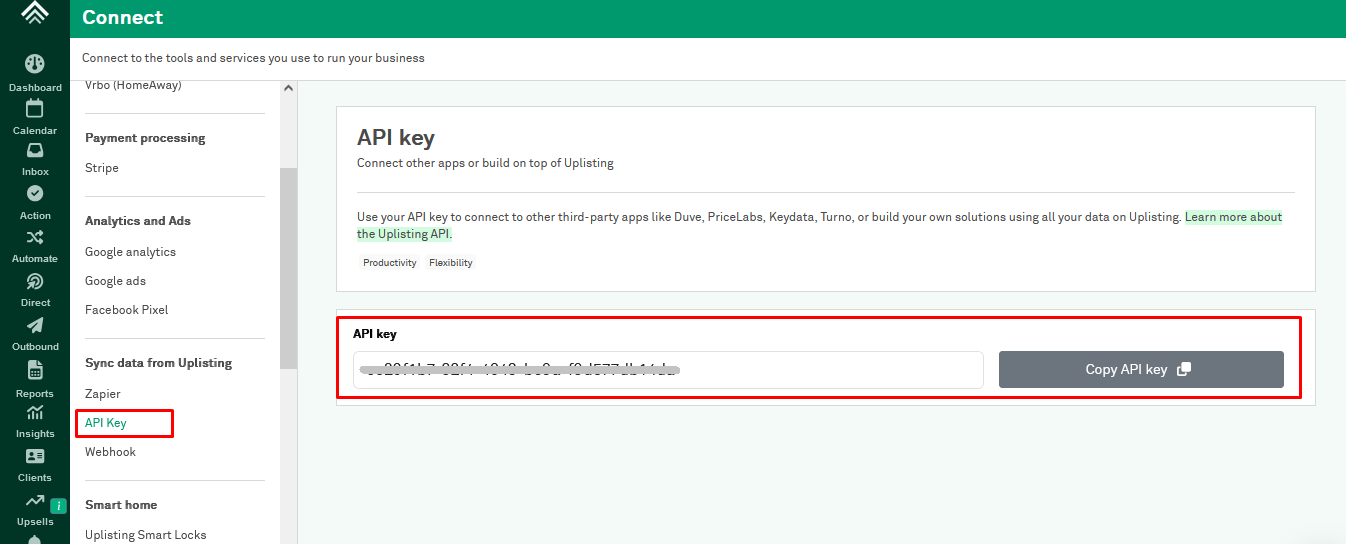
Paste it back into the Authentication screen (from Step 2) and click Connect.
- If you're using OAuth, proceed with signing in to your account.
- If you're using API key authentication, paste your API key into the provided field.
Once the authentication is successful, you'll see a confirmation message indicating that the integration has been connected successfully. You will then be automatically redirected back to the Acme app.
Note
For messaging apis, oAuth setup is mandatory.
If you have any questions or need help, don't hesitate to reach out at mail@calry.app.